Replacing a FINE Cartridge
If a remaining ink caution or error occurs, the Ink lamps and Alarm lamp flash to inform you that there is an issue. The printer cannot be used to print or scan when a remaining ink caution or error has occurred.
Replacing Procedure
When you need to replace a FINE cartridge, follow the procedure below.
 Important
-
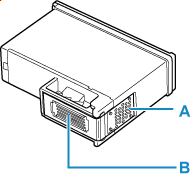
Do not touch the electrical contacts (A) or print head nozzle (B) on a FINE cartridge. The printer may not print properly if you touch them.
-
If you remove a FINE cartridge, replace it immediately. Do not leave the printer with the FINE cartridge removed.
-
Use a new FINE cartridge for replacement. Installing a used FINE cartridge may cause the nozzles to clog.
Furthermore, with such a FINE cartridge, the printer will not be able to inform you when to replace the FINE cartridge properly.
 Note
Note
-
For Windows, if a FINE cartridge runs out of ink, you can print with either color or black FINE cartridge, in whichever ink remains, only for a while.
For information on how to configure this setting, see below.
-
Color ink may be consumed even when printing a black-and-white document or when black-and-white printing is specified.
Both color ink and black ink are also consumed in the standard cleaning and deep cleaning of the print head, which may be necessary to maintain the performance of the printer. When ink runs out, replace the FINE cartridge immediately with a new one.
-
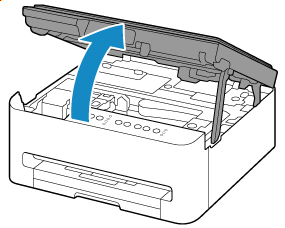
Open the scanning unit / cover.
The FINE cartridge holder moves to the replacement position.
 Important
-
Do not touch the metallic parts or other parts inside the printer.
-
-
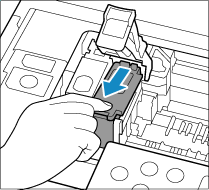
Remove the empty FINE cartridge.
-
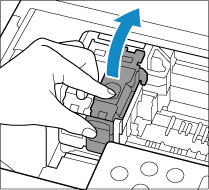
Pick up the ink cartridge locking cover to open it.
-
Remove the FINE cartridge.
-
-
Prepare a new FINE cartridge.
-
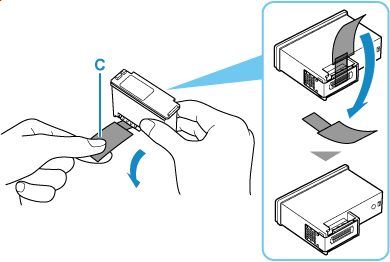
Take new FINE cartridge out of its package and remove protective tape (C) gently.
Important-
Do not touch the electrical contacts or print head nozzle on a FINE cartridge. The printer may not print properly if you touch them.
-
-
Install the FINE cartridge.
-
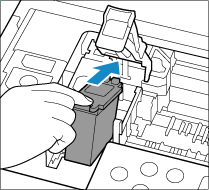
Insert the new FINE cartridge into the FINE cartridge holder.
The color FINE cartridge should be installed into the left slot and the black FINE cartridge should be installed into the right slot.
-
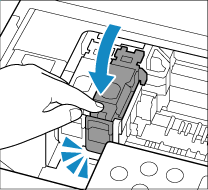
Close the ink cartridge locking cover to secure the FINE cartridge.
Push the ink cartridge locking cover fully until a "click" sound is heard.
-
-
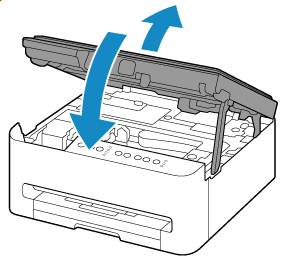
Close the scanning unit / cover.
To close the scanning unit / cover, hold it up once, then take it down gently.
 Note
Note-
If the Alarm lamp lights or flashes after closing the scanning unit / cover, resolve the error.
-
If the print head is out of alignment, as indicated by misaligned printed ruled lines or similar symptoms, align the print head.
-
